EVERYTHING YOU WANT TO KNOW ABOUT SPATIAL CHAT
User questions at Spatial.chat events
SpatialChat works differently from other video platforms. This sometimes takes some getting used to, but you will soon find that navigation and interaction in SpatialChat is actually easier and richer than in tools like Zoom or MSTeams. For questions or problems in that first phase, find our dedicated questions section here:
*Disclaimer: We take no responsibility for the operation of third-party software. This FAQ has been formulated based on our experience as users, for the best possible experience of the platform. For technical specifications, information on Privacy and Security or a comprehensive FAQ, please visit SpatialChat.
THIS IS HOW SPATIALCHAT WORKS
What is Spatial Chat?
Spatial Chat is an online platform for virtual meetings that can be used for online events, online conferences and remote working. It is a so-called 'proximity platform' where video and audio connection works based on proximity: you only hear and see the people who are in your area. This makes Spatial Chat significantly different from applications such as Zoom and MS Teams.
How does SpatialChat work?
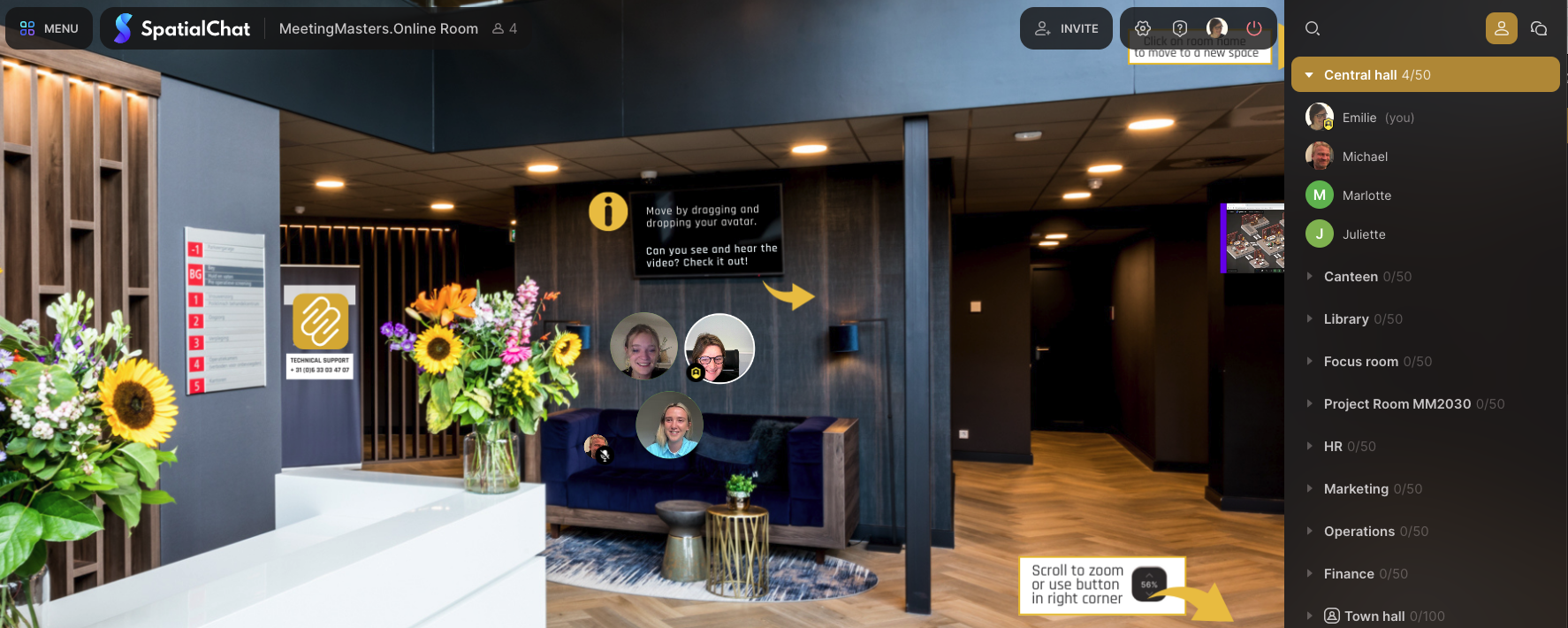
In SpatialChat, your video is not displayed in a fixed frame, but in a circle that you can move across the entire screen. This gives you the freedom to explore the area. When you get closer to another participant, a video connection is automatically started, encouraging natural conversations. When you withdraw, the connection gradually fades, just like in a face-to-face meeting. Other participants can only be seen as colored dots with their initials.
THE BEST SPATIAL CHAT EXPERIENCE: USE THE RIGHT BROWSERS AND DEVICES
Can you use SpatialChat on all devices or only on laptop/computer?
We recommend opening SpatialChat on a laptop/computer for the best user experience. Not all functions are possible on a phone or tablet and the limited size of the screen limits participants' experience of SpatialChat.
Why does SpatialChat not work in the Safari browser?
Some functions do not work optimal in Safari. We recommend entering SpatialChat in the following web browsers: Firefox, Chrome or Edge. Make sure that all permissions for camera and audio use are granted in the web browser settings. This can be checked by moving the mouse to the search bar and clicking on the padlock icon/ settings icon at the front of the search bar.

THIS IS HOW YOU NAVIGATE IN SPATIAL.CHAT

How do I move around in the space?
In Spatialchat, participants are represented in the form of a dot. By clicking on your own dot, also known as their 'own circle', holding it down, and then dragging the mouse over the screen, you can move around the screen.
How do I zoom in/ out in SpatialChat?
Participants can better visualize the screen for themselves in two ways. Firstly, the participant can zoom in and out in the Spatial screen by clicking on the percentage icon in the bottom right corner, after which he can click on the '+' to zoom in or on the '-' to zoom out. Secondly, the participant can zoom in and out using their own computer mouse by scrolling up and down or making an enlarging or reducing movement with their fingers on the track pad of the laptop.
How do I move between the different spaces in SpatialChat?
If you want to move through the platform to different rooms, this can be done as follows. Various icons are visible in the top right corner of the screen, including a person icon. Clicking on this will open a vertical drop-down window, after which a list will appear with all the rooms that can be moved to. By clicking on the name of the room, the participant automatically moves to the chosen room.
I can’t enter a room?
Spatial chat has a maximum number of participants allowed per room. It may be that the maximum number of participants allowed in a room has been reached. You can see this from the – 50/50 – that is visible behind the relevant room. If this is the case, you can return at a later time when other participants have left the room and there is room again.
FIXING AUDIO AND VIDEO ISSUES IN SPATIAL CHAT
My camera does not work: what can I do?
The camera may be turned off and still needs to be turned on. As with other online platforms, Spatialchat has a small menu bar at the bottom of the screen in which a video icon is visible. By clicking on the video icon it is activated and turns green. Your camera image now appears in your circle. Is the video connection still not working? Then check these things:
Are you in the right browser? Spatial Chat works best in the following web browsers: Firefox, Chrome or Edge. It may also be that the web browser settings are not correct:
Make sure that all permissions for camera and audio use are granted in the web browser settings. This can be checked by moving the mouse to the search bar and clicking on the padlock icon/settings icon at the front of the search bar.
I can't see others and they can't see me, what can I do?
If your camera settings are correct (see above), you may be out of reach of other participants. By clicking on your own dot, also known as the 'own circle', holding it down, and then moving the mouse over the screen to other participants, you can get closer to other participants.
My sound doesn't work, what can I do?
The microphone may be turned off and still needs to be turned on. As with other online platforms, Spatial Chat has a small menu bar at the bottom of the screen in which a microphone icon is visible. If it is red, it means you are not connected. If you click on the microphone icon, it will be activated and turn green. You will in principle be audible afterwards. Is it still not working? Try one of the following:
Check which input and/or output channel is selected. It may be that when using earphones they are not automatically connected to the correct channel. You can check this by pressing the gear icon at the top right of your screen. Select the correct input and output. Do you work with earphones? Double check that they are not still connected to your phone, for example. Check your phone and disconnect it there. Then reconnect.
If problems persist, check this: are you using the correct browser? Spatial Chat works best in the following web browsers: Firefox, Chrome or Edge. It may also be that the web browser settings are not correct: Make sure that all permissions for camera and audio use are granted in the web browser settings. This can be checked by moving the mouse to the search bar and clicking on the padlock icon/ settings icon at the front of the search bar.
I can't hear others and they can't hear me, what can I do?
If your audio settings are correct (see above), you may be too far away from other participants. Just like in real life, you need to be within earshot. By clicking and holding your own image and then moving the mouse over the screen to other participants, you can get closer to other participants.
How can I be audible to everyone in the room?
By clicking on the megaphone icon in the bottom bar, a small green megaphone will appear at the bottom of your dot. Your dot gets bigger and everyone in the entire room can hear you, regardless of distance. This is useful for instructions or if you want to share experiences or insights with everyone in your room.
How can I be heard by everyone in the entire SpatialChat meeting?
In SpatialChat you can basically only be heard in the room you are in, even if you use the megaphone. For the host roles (Space Administrator or Moderators) it is possible to address all people in all rooms at the same time. For people with host authorization, this option is in their submenu. During a Broadcast, the speaker appears at the top left of the screen. The sound of participants becomes softer. This broadcasting can be used as general group instruction or a plenary announcement.


HOW DOES THE CHAT WORK IN SPATIALCHAT? HOW CAN I SEND MESSAGES?
How can I send a message in the general chat?
There are two icons at the top right of the screen. The rightmost icon is a chat cloud. If you click on it, the chat for that room will open. You can write a message to anyone here – or like other people's posts.
How can I show a text message in space?
A chat cloud icon is visible at the bottom of the menu bar, next to the microphone and video icons. If you click on this and fill the input field with a text message or emoticon, your message will appear immediately next to your own 'bubble' and is temporarily visible to everyone in the room. You do not have to turn off your message again. It fades away after some time, but remains visible in general chat.
How can I send a private chat?
Various icons are visible in the top right corner of the screen, including a chat cloud icon. Clicking on this opens a vertical drop-down window after which there is the option to write a message in the general chat of the room, but also the option to write a direct message to a specific other participant. By clicking on 'direct', looking for the relevant participant in the list and selecting them by clicking on them, a private chat conversation is started.
SHARE SCREEN AND SHARE IMAGES IN SPATIALCHAT
How can I share my screen in SpatialChat?
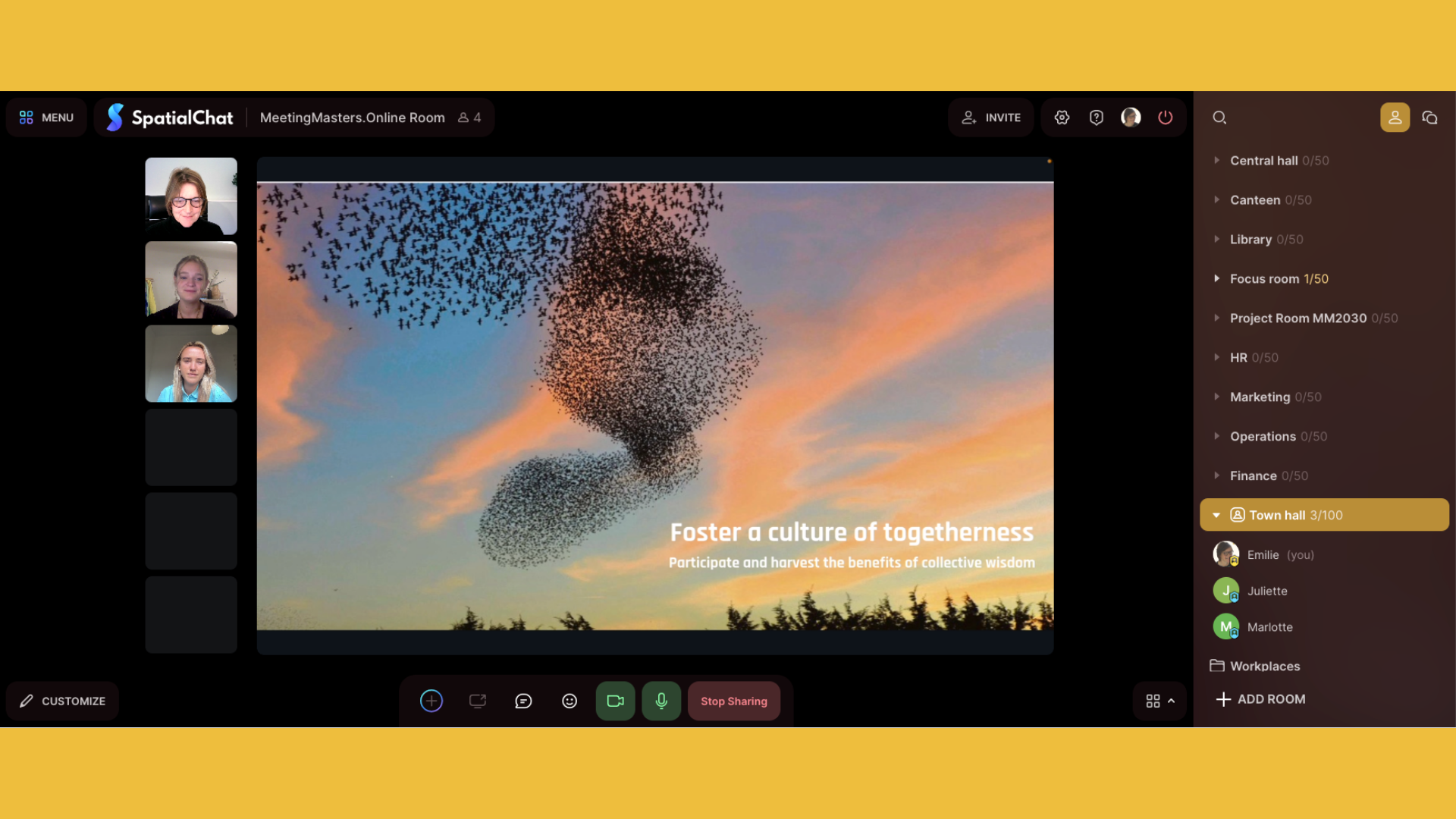
Just like with other online platforms, SpatialChat also gives you the option to share your screen. At the bottom of the menu bar, next to the microphone and video icons, a computer screen icon is visible. By clicking this, a pop-up window will appear where you can choose between sharing a selected tab/selected window/entire screen. After making a choice, the participant simply clicks 'share' after which the screen becomes visible to the other attendees in the room.
How can I show a video on the screen in SpatialChat?
You can show a video by sharing your screen, as described above. However, with SpatialChat you also have the option to place video on the screen, also known as "hanging" it on the screen. At the bottom of the menu bar, next to the microphone and video icons, a '+' icon is visible. By clicking this, a pop-up window will appear where you can make various options, such as uploading a video. You can make the video larger and smaller by scaling the image from the corners. Stop sharing? Click on the video again and then press the trash can icon.


How do I upload an image to the screen in SpatialChat?
With SpatialChat you can also show images on the screen as a participant. At the bottom of the menu bar, next to the microphone and video icons, you will see a '+' icon. By clicking on this, a pop-up window will appear where you can choose to upload an image. Select the image and press enter. By pressing the image again and then the trash can, you can delete an image.
How can I place a sticky note on the screen in SpatialChat??
In SpatialChat you can paste post-its directly onto the screen, provided that feature is enabled by the host. At the bottom left of the menu you will see a '+'. If you therefore click, a pop-up will appear with the option to paste a post-it.
However, SpatialChat also has an integration with Miro. By uploading a Miro board (this is also an option under the '+'), everyone in the room can collaborate and place post-its. Do you see the board but not the content? Then click twice on the blue bar to open the Miro board. within the Spatial environment.
How can I add a clickable link on the screen in SpatialChat?
With SpatialChat you have the option to share a link on the screen, which other participants can click on. This function is not always activated. If it is activated, the option will appear at the bottom of the menu bar, with the '+' icon visible. By clicking on this, a pop-up window will appear in which you can choose between different options, such as embedding a link or hanging a post-it on the screen.
How can I find the screen/tab with SpatialChat if can’'t find it anymore?
It's likely that another screen/tab is open, for example, because a link was clicked or another document is open. To find SpatialChat, look for the tab with a red dot. This is the page where the microphone and audio are active, and therefore likely where the screen is located.
FIND ANOTHER PARTICIPANT IN A LARGE SPATIALCHAT MEETING
How do I search and find other participants in my SpatialChat meeting when there are so many rooms?
Easy! Various icons are visible in the top right corner of the screen, including a person icon. Clicking on this will open a vertical drop-down window after which a list of all rooms will appear. Click on the magnifying glass icon, type the name of the participant you are looking for, then click on the name of the participant you are looking for and you will automatically be taken to the room where that person is located.
EVERYTHING ELSE YOU WANT TO KNOW ABOUT SPATIAL CHAT
Who can I ask for help if I'm in a SpatialChat meeting and I can't remember?
Do you have a technical question and are you in a meeting where Meeting Masters are present? Then you can ask us for help. Move up to a Meeting Master and ask your question. Find a Meeting Master in the participant list (as described above) and send a personal message. Or call our support number to speak to a Meeting Master.
Who can I ask for help if I want to organize a SpatialChat meeting myself?
If you want to set up an event in SpatialChat yourself, you can contact MeetingMasters for help. We supervise all kinds of meetings in SpatialChat, from format, set-up and design to technical support in the meeting.
Who can help me start using SpatialChat as an online clubhouse or remote office?
If you really like it and you understand how SpatialChat can support you as a regular meeting place, please contact us. We are happy to help you devise the best structure and design spaces that are functional and inspiring. And starting up your environment, with training to guide participants.